
Customer Care
Sign off
We need to sign off files in order for the company to have accurate reports. Moreover decisions, forecasts, panning are based on the reported sales & margins.
It reduce the risk or over/under payments to suppliers, ensure client is correctly invoiced, more timely payments to suppliers and receipting of incoming payments.
Finally ensure VAT returns are not misstated.
We receive an email each week with a deadline to sign off files:

Click on the link in the email and open the correct file
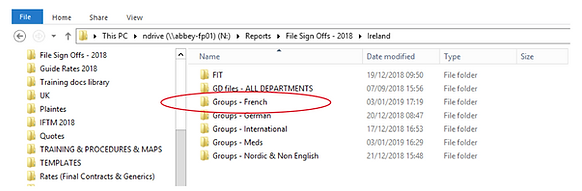

Sign offs are categorize by date on each page, then by account handler.

Then follow those steps:
In Groupbook checking through the services on the booking for correct cost, charge outs, booking status & line statuses in each line.
Then check that to be invoiced is at 0.

Then open Operation functions, bookings, tour window, insert the reference of the group, click on find, Inclusive tax which includes VAT, then exclusive tax which exclude VAT.

“to be invoiced” in the Tour Window Exclusive Tax needs to be = 0.00
[If the TBI is not 0 in the Tour Window:
Credit your last invoice in Groupbook… then Recalculate the booking… then re-raise your final invoice and check again TBI exclusive tax in operation functions]
Check the MARGIN

You will need to insert all information in the excel chart.
Expected profit margin can be find in PCM with the pcm of the group on the pax range used for invoicing- If a la carte insert NA. When the real margin is smaller and in red, you need to insert what is the issue and the impact in €

-
Explanation needed for margins in red/green
-
Signed off margin, handlers signature and comment required
-
‘Signed off margin’ = Actual margin @ date of sign-off (as per TP)
-
These explanations are to identify what was unexpected factors (+ or -) influenced margins (e.g. X hotel only offering BAR)… to prevent the same mistakes in future quotes

TBI amounts
When there are TBI amounts to be fixed, we receive this email:

TBI (Inclusive of VAT)
-
Difference between Booking Retail v Invoices – the issue comes from the booking
-
To Fix:
-
Adjust sell values in booking services to bring Booking Retail in line with Invoiced amount.. OR
-
Credit all invoices on file, recalculate, and raise one final invoice for correct Booking Retail value.
-

TBI (Exclusive of VAT)
-
Tour window Exclusive tax shows an amount ‘to be invoiced’ AND the inclusive tax amount to be invoiced is zero – the issue is from the VAT
-
VAT problem on the file
-
Caused by inserting 0% VAT line just to “get the invoice created”… then correcting later.
To Fix:
-
Credit the booking IN FULL – see credit note training
-
Recalculate the file
-
Raise a new invoice for the booking – see invoice training
-
Re-check the Tour Window - To Be Invoiced amount, Inclusive & Exclusive of VAT, should now be zero.
