
Accommodation
Exporting the report from Tourplan
First you need to pull a report for the hotel and the month you are returning. To do this you need to go to Operations and click Operational Reports. From here click Service Status:

On the above screen there you need to do the following –
1. Enter the Service Date
If you are returning April 2017 I would suggest that you add on a few days either side. The reason for this is to ensure no group is missed when pulling the report.
2. Under the Service Box just untick everything and ensure AC
(Accommodation is ticked)
3. In the Branch box untick everything that relates to FIT
4. Then select Page 2 and in Supplier Code From and To enter the hotel code that you are returning.

For the above the hotel that is been returned in the Regency for April 2017. In Supplier Code From and Supplier Code To you can see REG002 (supplier code for Regency)
Then you select Export to extract the report from Tourplan.
Once you click the export button you will be asked to save the file.
It will be saved as a CSV file (Comma Separated Values)
For consistency it is best to save it as
Hotel Name (Regency Hotel) – Returned Allocation – Month (April 2017)
See below example.
Folders are set up for each allocation for the report to be saved.
Location: N Drive / Accommodation – Groups / Allocation Return 2017 / Location (Dublin in this example)
Saving the Report as an Excel Report

From here go to where you have saved the CSV file and open it.
You need to then save it as an Excel file – see below

Once you have the saved the file as an Excel file you can amend the report.
Steps to do this as follows –
-
Bold the top line
-
Remove the following Columns
-
Supplier
-
Date Entered
-
Service / Location
-
Pax
-
Agent
-
Consultant Code
-
-
SCU_Qty refers to the number of nights, change this to No. Ngts (Hotel will understand this and not SCU)
-
When checking the report you need to focus on the Status of the groups.
-
The Status (Column A) on the spreadsheet refers to the Service Status of the group and the Status (Column J) refers to the Header Status of the group.

Steps when checking the Excel Report
Check the Service Status first –
-
Remove all the CA (cancelled lines) from Column A
-
From Column J you need to check anything that is on OP (option), QU (Quote Only)and XX (Cancelled)
-
This is telling me that the header status in TP is cancelled but as the service status is still on either OK / AL / PA, it has not been cancelled and maybe still holding allocation.
-
Some tips or queries you may have –
-
Quote Only – if a header is on quote only I would suggest following up with the account handler advising them that you are returning the allocation. If they know it is not required you can release the allocation and possible use it for a waitlist.
-
XX – This is a group that has been cancelled where the allocation is still holding. You need to decide if you are releasing the allocation back into the system or if you are returning it to keep for a group at a later stage.
-
If you are releasing the allocation you need to delete this specific line from the allocation excel report and set it to CA in TP.
-
If you want to return it to keep the space you need to change the header status (Column J ) to CO (confirmed)
-
On some reports you will have the Status WL (waitlist), this will been seen in Column A. These need to be highlighted in yellow on the report
Once you have done this you can then sort the report by Service Date.
Remember when pulling the report you added a few days either side of the month you are returning.
Delete this dates from the report.
In the below example I am going to delete March and May dates.
Also you can see this report has pulled in some FBB Service lines – delete these also:

TIP: Before returning the allocation you need to check the Utilisation, we do not want to return the hotel if the utilisation is low, this will affect getting future allocation.
Also remember we are receiving new groups weekly and we may need some of the allocation space that has not yet been blocked. So we enter a Dummy / Fake bookings and return it as confirmed to protect the space. If it is not needed it will be cancelled in time and if it is been used we just need to advise the hotel of the new group details.
The end result will look like the below –

Cross Checking against Tourplan
As a double check it is suggested that you check what you are returning is what is blocked in TP.
To do this go to Database and select Allocations.
You can check the dates blocked on the report match what is in TP and you can also check the group references match up. See Below -

Return of Allocation to Hotel
Once you are satisfied with the return you then email it to the hotel.
Example of email below-

Also attached in the email is a list of contacts for the hotel to contact should they have any queries relating to the confirmed groups.
Final Steps
Once returned you need to contact Information Systems and ask them to place a 400 release on that hotel for that month, closing out the availability.
The Accommodation Team and Contracting Team need to be copied in on this email so they are now aware the allocation is returned. Any changes or amendments for this hotel for the month returned need to now to communicate directly with the hotel.
The hotel now have these groups as confirmed from Abbey Ireland and any cancellations will need to be sent to the hotel to avoid cancellation charges.
You then need to update the Returned Hotel Allocations 2017 report.
This can be found in N Drive / Accommodation – Groups / Shared Information
You need to place an X in the month of the hotel that you have returned.
For this example Regency for April was returned and an X is now visible.
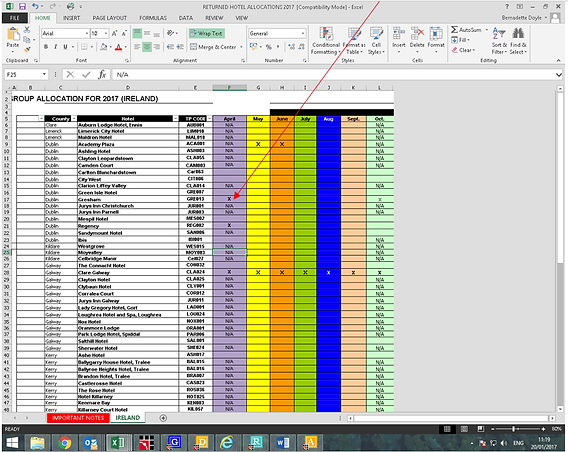
The above report is used by Operations Team and Account Handlers so they can see what hotels are aware of their groups. This is extremely important, especially in high season when operations are sending out rooming lists.