
Accommodation
Bulk Cancellation Overview
Bulk cancellations are completed in the accommodation area on a weekly basis and this is normally completed by Joe.
Our aim is to recycle as much cancellation space for new groups as possible, the reason for this a lot of the cancelled hotels are using allocation space or where hotels are confirmed extra to allocation or with non-allocation hotels we would expect this to be at contract rates. Generally if we request space for a second group with a hotel on the same date we already have space held they will apply a higher rate to our existing contract rates. We are better off confirming a group at contract rates allowing us to meet out margin targets.
All groups put to a XLD status in Tour Plan show up on a specifically designed cancellation report that is used in the accommodation department. Once this status is updated in tour plan it will appear on the report. The service line however must not be on a CA status in Tour plan. Once that status is changed the service line will no longer appear on the report.
Prior to completing a bulk cancellation we advise the accommodation team the date a bulk cancellation will be completed along with time frame to be cancelled. This allows the team to block any space they do not wish to be cancelled in case they may want to re-use it for another group they are working on. They do this by putting a note in the supplier confirmation advising there name and a note (offered to and that particular group reference).

Checking the cancelled report
All bulk cancellation are done over ten day periods and normally three months in advance of the cancellation deadline. For example each time a bulk cancellation is completed we were doing a bulk cancellation from the 01/05/19 to the 10/05/19 inclusive this would normally be completed on the 01st of February 2019. We would print off a copy of all cancellations in that period that need to be completed. This then show up and hotel not to be cancelled as they may be re-used for new groups.

It will also show up any stricter cancellation terms and conditions for example a six of eight week cancellation. This ensure we have captured this cancellation deadline in advance and will not face a cancellation charge with that hotel.
Exporting the report from Tourplan
The first stage in the cancellation is settling up the correct perimeters that you wish to be cancelled. To do this you need to open the operations tool in tour plan. You then select bulk messaging followed by Accommodation / XX. You then go to the first filter tab and amend your service date to and from. The service date from should always be the 1st of January followed by year you are cancelling for example 01/01/19. The reason for this if you are completing a bulk cancellation between the 01st and 10th of May but a cancellation for an earlier date appeared for example the 20th of April that cancellation is also issued to the hotel. The service date to should be up to the date you want the bulk cancellation to be up to in for example 10/05/19. The only other setting you have to input is AC on the service tab for both (From and To). All of the service status and booking status would be already set and saved.

The only other setting you have to input is AC on the service tab for both (From and To). All of the service status and booking status would be already set and saved.

Selecting the correct service lines
Once you have selected the date parameters that you wish to cancel the next thing you need to select in the services tab.

Once you select this it will bring up the list of all bookings to be cancelled. In order for the cancellations to be sent correctly you need to tag all of the service lines. This will group them altogether. At the end of the report it will show you the location for each service line. This is important because it allows you to de-select any service lines that you do not wish to cancel. For example if we have a combined group with the UK and it is put to XLD status all hotel service lines for both Ireland and UK will be generated into the cancelled report. It is important that we de-select any UK hotel properties as the cancellations for these need to be sent from the UK office who originally confirm the space.

Along with this you also need to de-select any service lines that were already marked on the cancelled report to be used for another group.

Once this is completed you need to select the setting to create the bulk message. You do this by clicking on send.
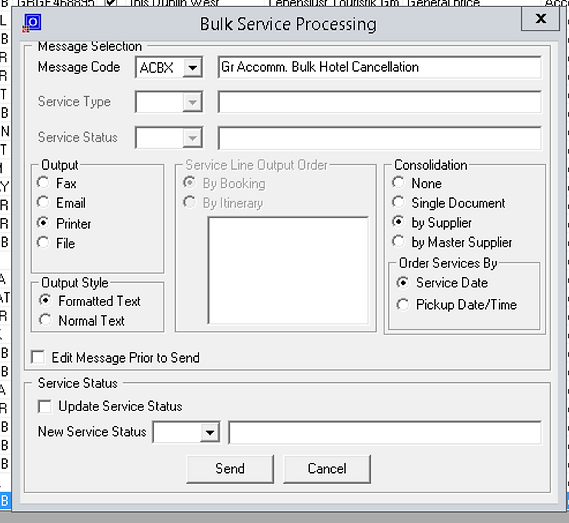
Then the below will appear, you need to
-
Select the ACBX followed by email.
-
You then pick the box (Edit Message Prior to Send) this will allow you see each cancellation document before it is sent to the hotel.
-
After this you select (Update Service Status) and put the status CA as the new service status you want to appear on each service line in tour plan you are cancelling. This will also take the cancelled lines out of the cancelled report.
-
The final stage to be completed is clicking on send.
Sending the cancellation reports to hotels
The final stage in thee bulk cancellation is sending the cancellations to the hotels. Once we have selected send tour plan will pull together all of the cancellations into one report and also put them into alphabetical order. If there is more than once cancellation for a hotel all cancellations will show on the one report.

To send the cancellations to the hotel we select send. This will generate a box with contact details for the hotel to send the cancellation report. We select the e-mail address and click ok.

Once you click ok you need to select it again followed by clicking ok again.

Once this is done click allow and the cancellation will be send to the hotel. You then select next and move onto the next cancellation.

After the cancellation is issued to the hotel
Once you send the cancellation to a hotel the email will appear in your sent items in outlook. These need to be placed into the public folders under the year and month that the cancellation is for.
