
Information Technology
Outlook Online Archiving
Summary
Online Archives replace the need to archive files to pst files. The previous method of archiving email to the L:\ drive had frequent issues with corruption and search.
Moving to Online Archiving has the following benefits;
• Creates an exact replica of folder structure from main Inbox
• Centralised storage of all email
• Emails are backed up into the central email system
• Online archives can be viewed and searched from remote Outlook Web Access (https://mail.abbey.ie/owa).
• Dynamically reduce size of primary mailbox
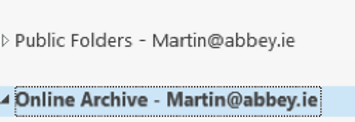
The archives appear as a new mailbox in the left hand panel in Outlook;
How to get emails into the Online Archive
MANUALLY
1) If you have an existing old archive IT can import these into your new Online archive
2) Users can import data to the archive in the following ways:
· Import data from a .pst file using Outlook’s Import and Export wizard.
· Drag email messages from .pst files into the archive.
· Drag email messages from the primary mailbox into the archive.
AUTOMATICALLY
You can assigned an archiving policy to your main inbox (or individual subfolders) to set what age of emails are automatically moved to your Online archive.
To do this click you main Inbox, select ASSIGN POLICY from the tool bar and choose how far back you want to archive
