
Information Systems
Hotel Loading
FIT and GROUP Hotel Ireland contracts insertion guide
Check and update contact details
Open Financials and select Creditors
Enter supplier code, in case code is not given, enter the first 3 letters and search supplier in the drop down menu – make sure to have the right supplier
Check the address under Details
Check Contacts, add new contacts, but do not delete any of the existing ones.

Check bank details under Currencies, if they don’t match send the new ones to Accounts.


Insert Notes
Open the Database and enter supplier code
Select Service Details/ Enquiry Notes/ Service Related Notes
Copy the relevant notes template and amend with the information given on the contract


Enter Rates:
Go to the database and the relevant service line

FYI
Standard /most common accommodation service lines/codes:
GBB = Group Bed & Breakfast
FBB = FIT Bed & Breakfast
GDBB = Group Dinner, Bed & Breakfast
Other common standard accommodation codes:
FRO = Room Only (FIT)
FBBTR = FIT triple room
Entering Group Rates:
Insert new date range
Rates →GE →Insert →Enter date range (top of contract) → OK

(Note: In the above example contract the rates are already inserted in the screenshot. The dates you would insert if you were doing it would be 01/04/16 – 31/03/17)
Before entering any rates check:
-
Details
-
Taxes (VAT rate)
-
Stay rules

Enter any/all rates that will be the same for ALL date splits;
-
Single Supplement
-
Additional Single Supplement
-
Triple reduction
-
Quad reduction
-
Porterage (Note for porterage: Need to enter “round trip” rate; so if it says €2 on contract, double it (€4)


*NB for all group rates:
Mark-ups: 3%. No mark-up for any REDUCTIONS (Triple etc)
Make sure to delete FIT rates in Group lines
-
If different rates apply for different days of the week, split week
-
Insert Rate, amend Rate Name and Rate Text and adjust the days in the “Apply For” weekday drop down

-
Then, Split date ranges when necessary and enter main “half twin” rates in each split.

To split the date range in the system:
Right-click “GE” on the relevant date range
→”Split Date Range”
→Enter relevant split (eg Jan – April)
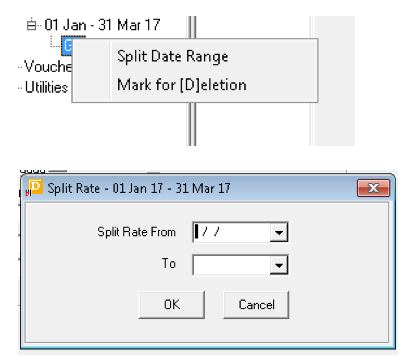
→Fill in the relevant “half twin” rates
Check policies:
Service details →cost details → tax type

-
FOC (Free of Charge) Policy: FOC Defaults

Note: if the contract FOC is different then what’s in the system, do not change! Enter in the comment field “See service notes for 20__ FOC policy”.
-
Child policy

Entering FIT Rates:
Mostly the same as group, but enter in FIT section of rates

Other differences:
-
No quad / porterage / single room supplement / FOC
-
No mark-up
-
Check AC document, if Hotel is on it, then set rates to closed until checked, If the hotel is not on document then leave them open
-
Check CAX (cancellation hours) before entering rates

Special Offers: FIT only
This section is found on the 2nd page of the contract

-
Sometimes there will be special offers, eg: “Stay 2 nights for the price of 1”
-
This is entered in “Stay Rules”, only enter a special if it’s available 7 days of the week.

CHECKLIST:
(Always double check all contracts when you’re finished inserting)
BOTH
-
Notes (As template, Arial 12)
-
Child Policy
-
VAT
-
Exchange rate where necessary
-
Check all tabs in date ranges
GROUPS
-
FOC Policy
-
Additional SRS (e.g. €6.50)
FIT
-
CAX Hours
-
No porterage
-
No FOC
-
No additional SRS (e.g. €6.50)
-
Check if hotel is “Priority”, if it is close rates. If not leave rates open.
-
Tell Nico (Nicolas Roland, nicolas@abbey.ie) whenever new FIT rates are inserted